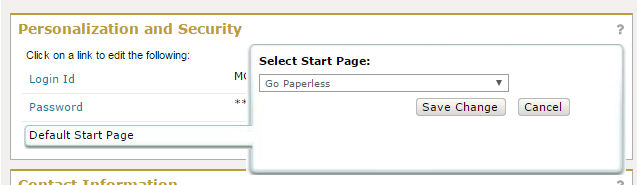
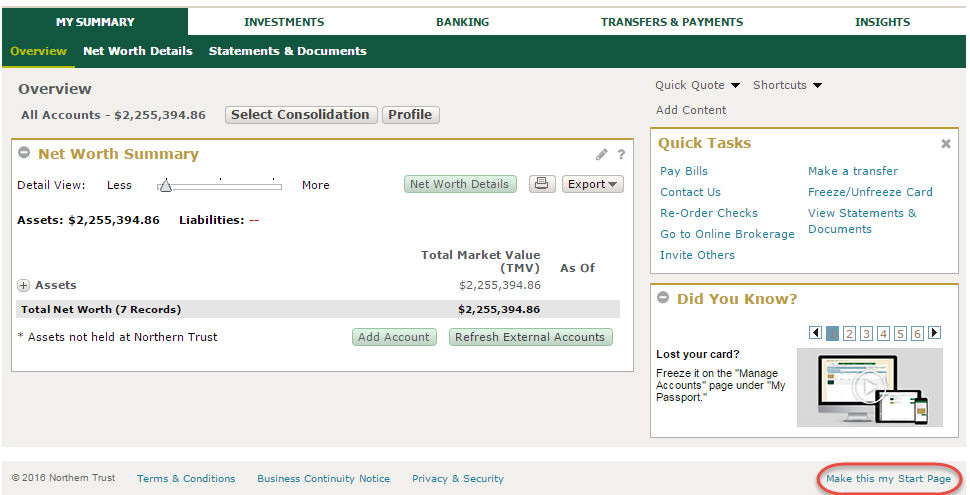
By default, the first page you see once you logon to Private Passport (Start Page) is My Summary -> Overview. You can change the Start Page to any Private Passport page by either clicking the "Make this my start page" link found at the bottom of the page or by navigating to the My Profile & Preferences page and changing the Default Start Page setting to the desired page. You can change the Start Page as many times and as often as you like. Your changes will take effect the next time you logon to Private Passport.
Navigate to Settings -> My Profile & Preferences.
Under 'Personalization and Security', click Default Start Page. A menu will expand allowing you to make a selection from a drop-down list.
Select your desired start page and click Update.
Navigate to the page you want to be your Start Page.
Click 'Make this my Start Page' in the lower right corner of the page. A confirmation dialog box will appear.
Click OK.
You can create shortcuts to easily access any page without having to use the site navigation. See Create Shortcuts.
Customize how you want your accounts and consolidations displayed throughout the site (by name, number, etc). See Set Account and Consolidation Display Defaults.
In addition to setting your start page, you can also set other security preferences. See Set Personalization and Security Preferences.
